
- Log into your Gmail account.
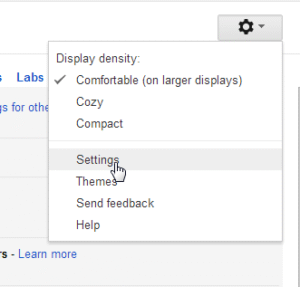
- Go to the Gear at the top right and select Settings.

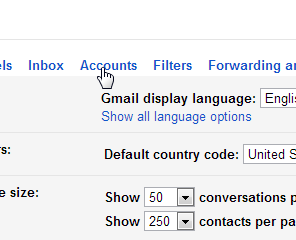
- Click the Accounts tab.
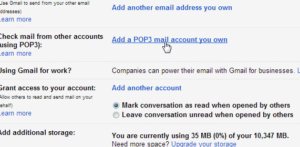
- Next to “Check mail from other accounts (using POP3),” click Add a POP3 mail account you own.
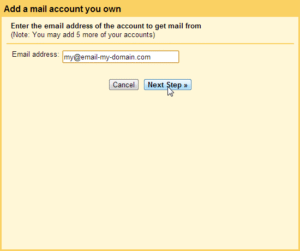
- Enter your domain’s email address and click Next Step.
- Enter your POP3 information for your domains email address in the form.
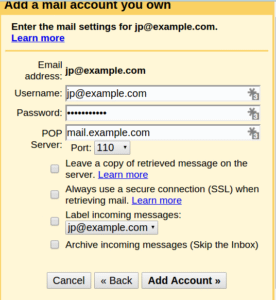
Click Add Account. - You will see a message stating Your mail account has been added. You can set the email to send as well.
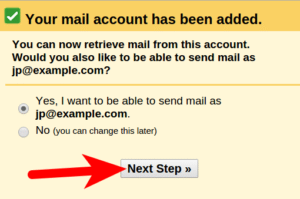
Note! If you do not want to send through Gmail, click the No radio button. You don’t need to follow the next steps.
If you want to send through Gmail, select Yes and Click Next Step.
- Enter your Name.
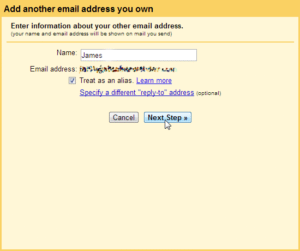
Click Next Step. - On the Send mail through your SMTP server page, fill in your SMTP Server, Username(full email address), and Email Password. Then, click Add Account.
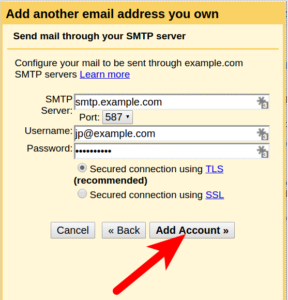
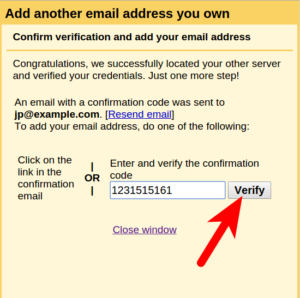
- Now, Gmail will email a verification code to the address you just added. Check your domains email for a message Gmail sent you. Click the link in the email, or Enter the code into the text box and click Verify.
Now you will see your Domains email address in the Send Email As and the Check mail from other accounts section.
][/vc_tta_section][vc_tta_section title=”Microsoft Outlook 2000″ tab_id=”1506550319562-bead0c15-8e49″][vc_column_text]Go to the following menu:
1. Tools–> Services

2. Push the Add button. Then click on Internet Email.

3. Fill in the correct information as indicated below:


4. Hit OK. You will then need to log out and log back into mail.
[/vc_column_text][/vc_tta_section][vc_tta_section title=”Microsoft Outlook Express” tab_id=”1506550319517-3c85c01e-b234″][vc_column_text]This page describes how to configure Outlook Express to access your POP email box. For general information about POP email, please see POP Email Accounts.
- Select Accounts… from the Toolspull-down menu.

- You will see a listing of all the different accountsthat you have Outlook Express configured to use. Click on Add…andselect Mail…to add a new email account.

- From here out you will be guided by the Account Wizard.We won’t cover each of the steps in our instructions, but the importantinformation is below:
E-mail address: @yourdomain.com Type of mail server: POP3 Incoming Mail: yourdomain.com Outgoing Mail: Enter the SMTP server provided by your ISP.UNIX hosting users may enter smtp.yourdomain.com POP account name: popID. Password: your password.
[/vc_column_text][/vc_tta_section][vc_tta_section title=”Setting Up Email on iPhone” tab_id=”1506551044238-fea39b41-da0f”][vc_column_text]
Configuring email on iPhone
[/vc_column_text][/vc_tta_section][vc_tta_section title=”Outlook 2010″ tab_id=”1506551205708-d19304a6-4030″][vc_column_text]Mail application “Microsoft Outlook 2010® for Windows®” can automatically detect this email account’s settings.
- Choose to set up a new email account in “Microsoft Outlook 2010® for Windows®”.
- When “Microsoft Outlook 2010® for Windows®” prompts you for the email address, enter your email address.
- Use your email account password as the password.
If the auto-configuration fails, please set up the account using the manual settings.[/vc_column_text][/vc_tta_section][/vc_tta_accordion][/vc_column][/vc_row]
